
Tutorial: Create a Sports Player Card With Elementor & SportsPress
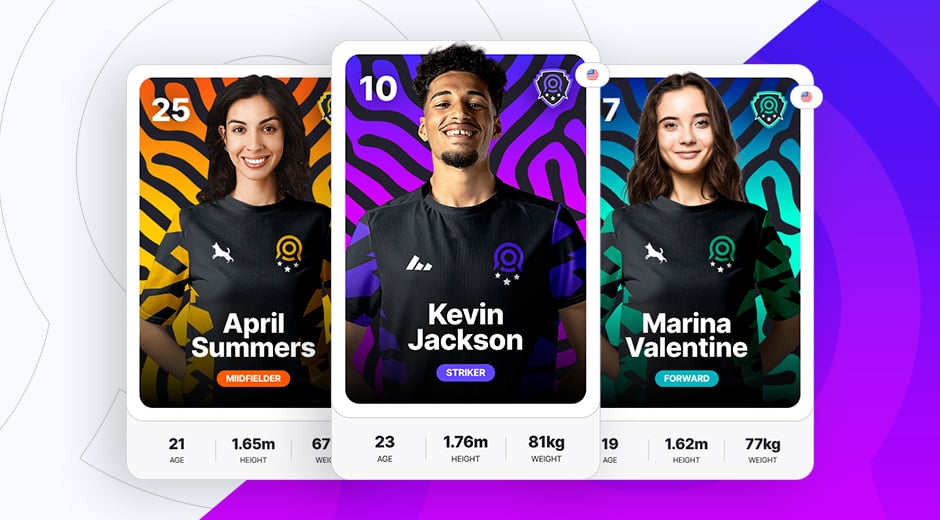
In this tutorial you are going to learn how to create your own player card for your sports or eSports team using the free OrokuBlocks plugin. This is perfect for quickly showcasing your players, main stats and metrics and more in an cool looking way. The best thing of all, is that the player card widget connects directly with the SportsPress plugin, so it will automatically import all your player's stats, team and metrics in just a few seconds!.
What you'll Need
To build your player cards you'll need:
Make sure that you have everything installed and ready before continuing.
Creating your Club & Player
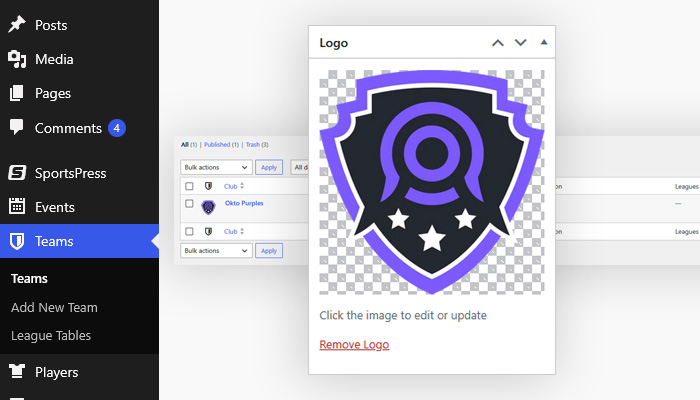
Once you have the SportsPress pugin installed, it's time to create your team and players! First of all, go to to Teams > Add New Team and create your own with all the details you want. If you want more information about creating the team, check the SportsPress video on how to create a team.
Don't forget to add your team logo because the player card will get this image and use it on the widget!
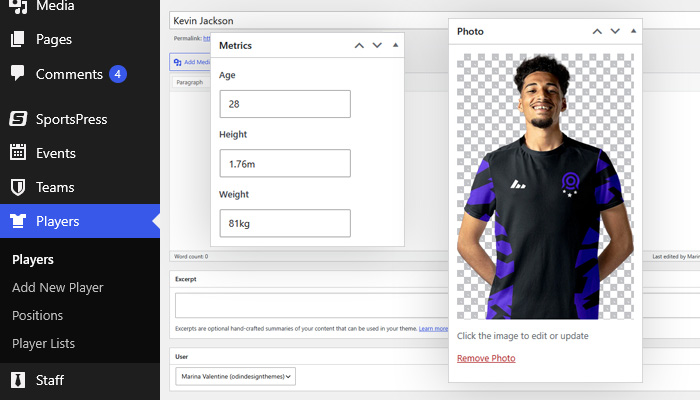
Now that you have your club ready, it's time to create your player. Go to to Players > Add New Player and start filling all the information you want in order to complete it!. Remember that once created, the OrokuBlocks Player Card widget will get it's information from the following fields: Name, Squad Number, Nationality, Position, Current Teams, Metrics (how to add metrics) and Photo, in this case, the photo is 800x1200px. If you want more information about creating the player, check the SportsPress video on how to create a player.
Creating the Widget
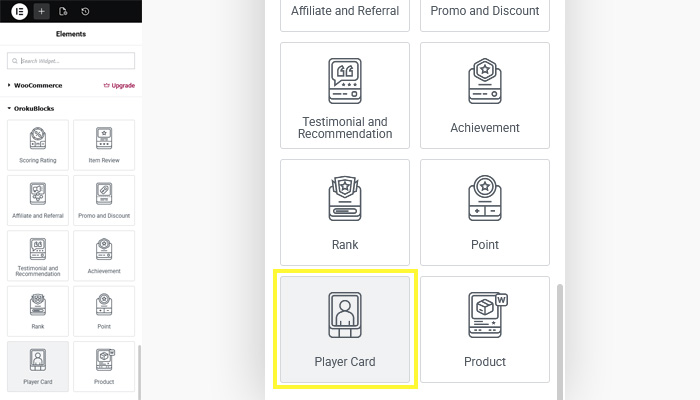
Go to the page where you wish to create your player card and open the Elementor widgets panel. Once you are there, scroll and look for the OrokuBlocks widgets, you'll see the Player Card one. Drag it to your page and you'll see at the side panel the Edit Player Card options. Don't worry if nothing appears in the widget box, as you'll need to configure it first so all the data shows.
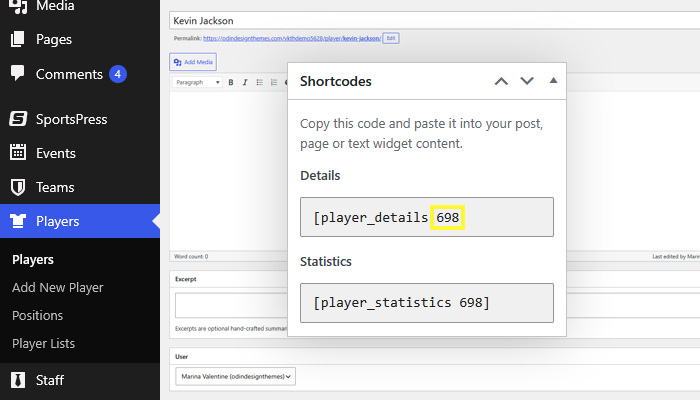
In the Edit Player Card you'll find all options to customize the widget. First of all, select the widget version that you would like to work as a base. You can see all versions here. Now go to the Player option, here you'll be asked for the player ID. To find the player ID, from your WordPress backend, go to Players and open the player you want to find the ID of. Once open, consult the Shortcodes section in the right hand side panel, the number that displays inside the shortcodes is the player ID.
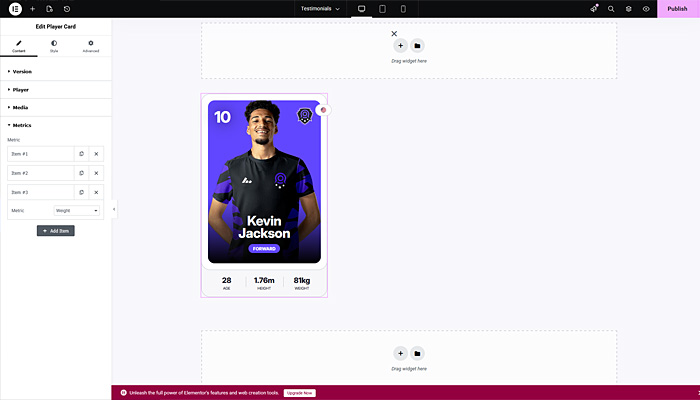
Once you enter the player ID, the plugin will fill your card with the details from the player's profile! Now you just have to customize it the way you like it! The next option is cover image, this is in case you don't have both a PNG player and background image and you want to use only one image for the card. In this case, we won't upload anything until the next step as we're building the same card as the one we have uploaded as an example of the Player Card V1.
Next, we have the metrics option, to add the stats at the bottom of the card, just click on Add Item and select the metrics that you would like to showcase.
To finish customizing the card as our example, go to the Style tab and select the Player option. On Player Image Style select overflow so the player's photo goes beyond the white borders. On Player Background Type you can select a color, a gradient or an image. Here we'll select Image. This will load the image you upload from the Content tab, Media > Cover Image option. The image of a squiggly texture we used here as background has 608x880px.
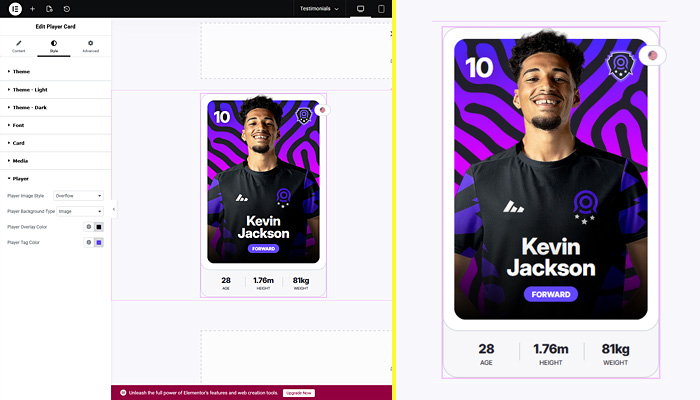
And there you have it! An awesome and cool looking sports player card! All that's there left for you is to create your own and play with all the other options that the widget offers so you can customize it the way you like. Our example player card has a width of 340px, so you can fit 4 of them on a 1420px grid of 12 columns of 100px with 20px gutter.
Follow Us for Updates!
If you enjoy our plugin, we please ask you to follow our X/Twitter account and leave us a like, a comment or a retweet! It will really help us spread the word and connect with more people in order to keep supporting and updating our plugin. Also, we'll use the account to let you know about releases, upcoming widgets and more! Thanks, and we hope you enjoy our plugin!.